Register SecondaryWidget and Shortcut Cards
Introduction
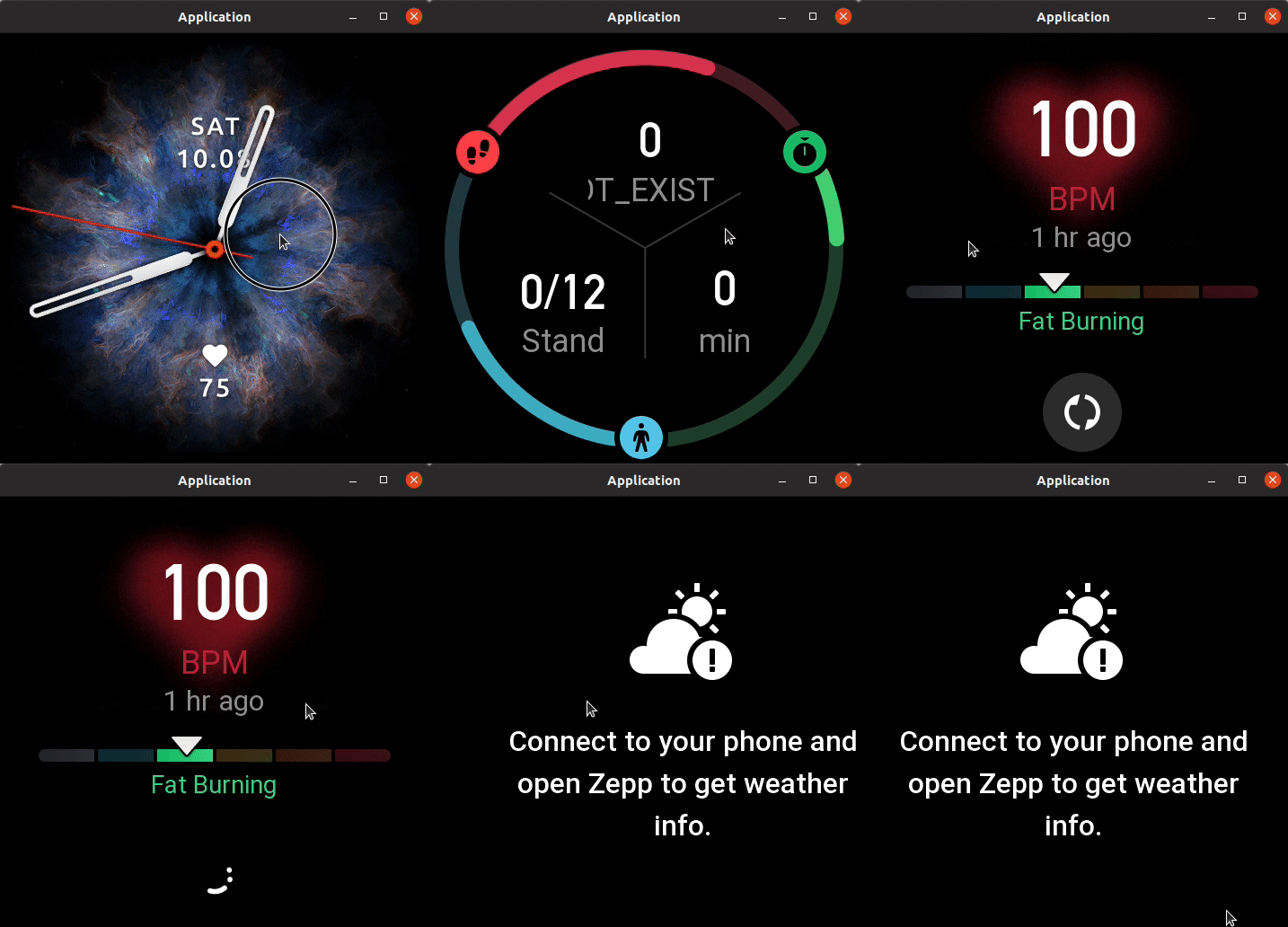
Expanding the system's open capabilities is an important goal for the Zepp OS team, and in the new 2.0 release, we've expanded the scenarios for running Mini Programs to include SecondaryWidget and Shortcut Cards.
The following figure shows the SecondaryWidget
The following figure shows the Shortcut Cards
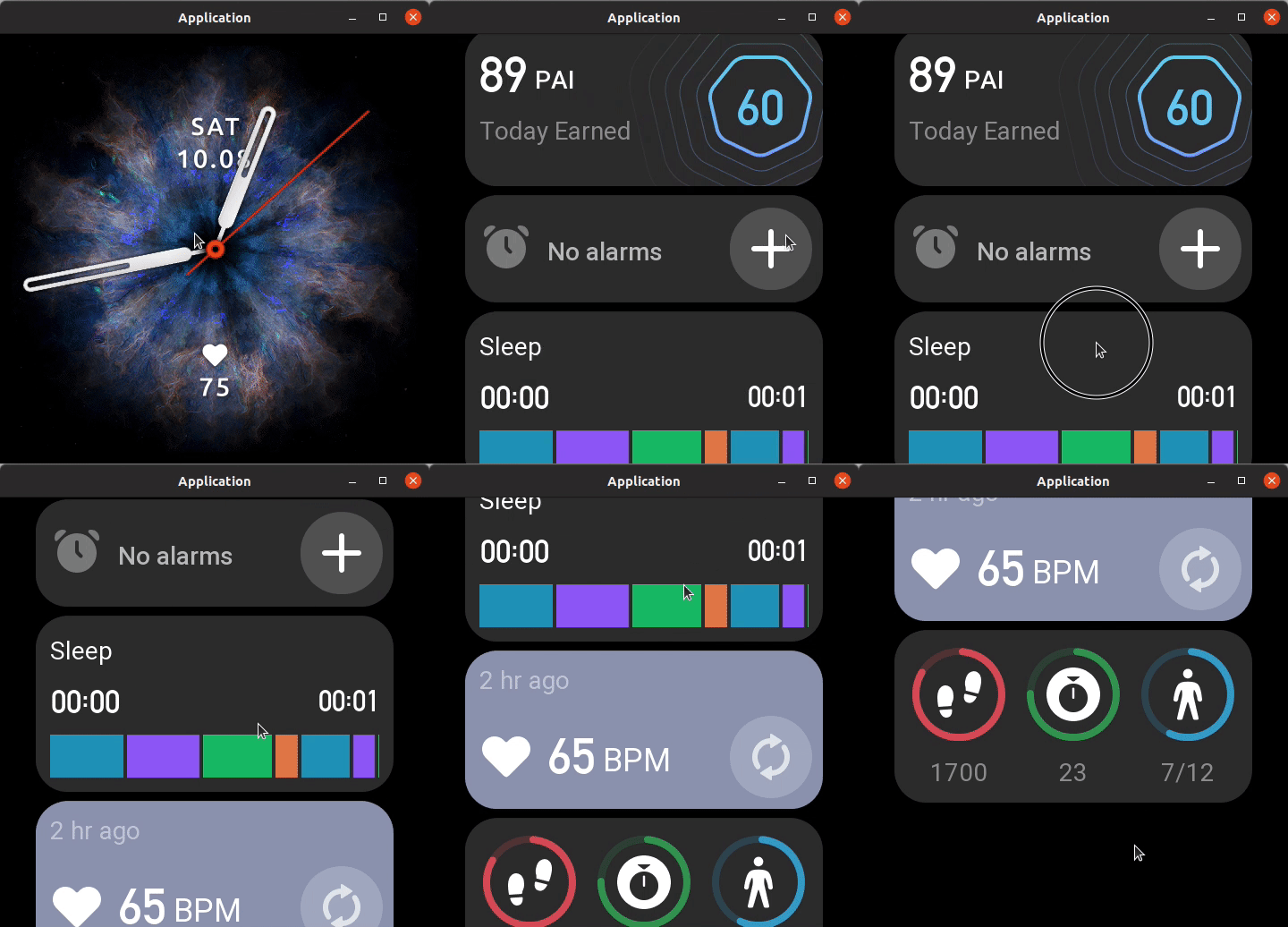
Register SecondaryWidget and Shortcut Cards are a widget on the screen. A Mini Program can contain multiple independent SecondaryWidget or Shortcut Cards, and the SecondaryWidget or Shortcut Cards must exist dependent on the Mini Program.
SecondaryWidget and Shortcut Cards constructor require API_LEVEL, please refer to API_LEVEL for API compatibility.
Develop SecondaryWidget or Shortcut Cards
Analogous to the development of the Mini Program page Page, the two are very similar, and are divided into two steps, using the SecondaryWidget as an example.
1. app.json configuration and file directory organization
First you need to configure the entry file and icon in Mini Program Configuration app.json.
{
  "module": {
    "app-widget": {
      "widgets": [
        {
          "path": "app-widget/index",
          "icon": "icon.png",
          "name": "app-widget-demo",
          "runtime": {
            "type": "js"
          }
        }
      ]
    }
  }
}
For the organization of the project directory structure refer to Folder Structure.
2. SecondaryWidget Application Registration and Development
Each SecondaryWidget application needs to use the SecondaryWidget constructor in the corresponding JS file to register the SecondaryWidget application instance, specify the lifecycle callbacks, event handling functions, mount properties, etc.
To register a shortcut card, refer to AppWidget Constructor.
Slightly different from the Page lifecycle, the new onResume and onPause lifecycles have been added, triggered when focus is gained and lost, respectively, due to the focus feature of SecondaryWidget and Shortcut Cards.
3. Add SecondaryWidget and Shortcut Cards
Here is a list of operational paths on the device or simulator.
Add a SecondaryWidget application
Settings => Preferences => Widget => Add icon at the bottom of the interface
Add a Shortcut Card
Shortcut card page scrolls down to the bottom => Click on the settings icon => Add icon at the bottom of the interface