Watch Face Test
Preparation
Enable Developer Bridge mode, see Developer Bridge Mode for version requirements and enabling steps
Log in with same account in the watch face maker interface, simulator, Zepp APP
The device supported by the current watch face in the watch face maker interface, the device selected by the simulator, the device bound to the Zepp APP should be the same
Testing
Simulator test
Open the Simulator, click the "Simulator" button in the upper left corner to open the watch simulator window, click the "Bridge" button at the top to open the Developer Bridge mode
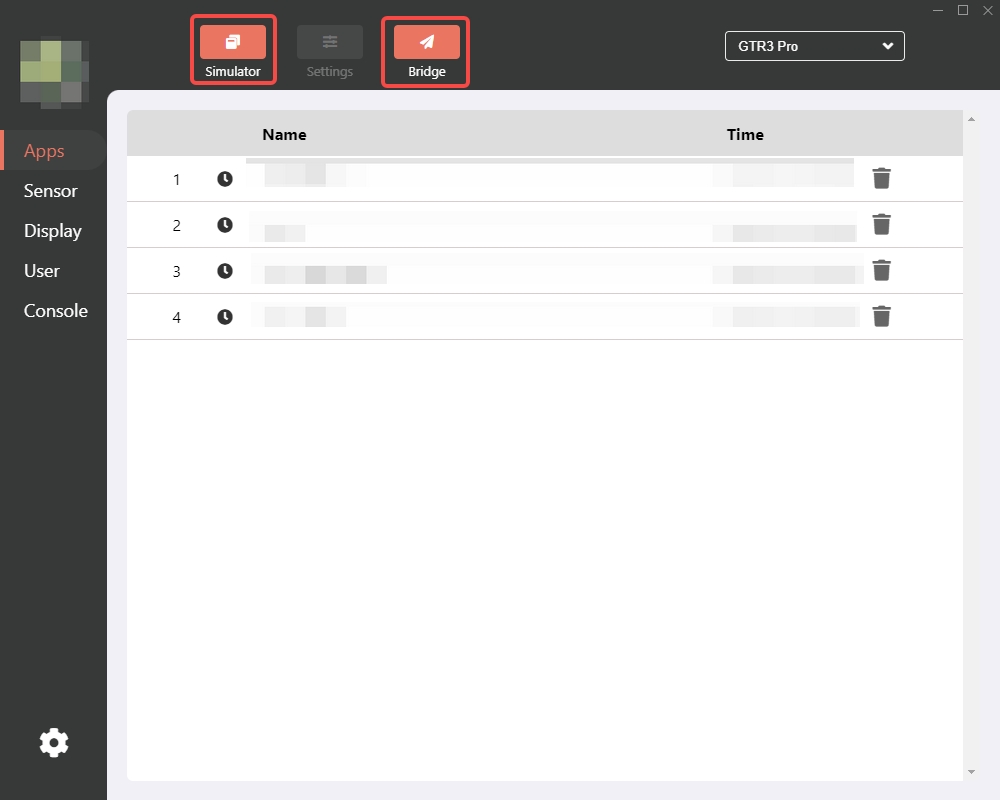
Select a finished watch face in the watch face maker interface, click the "Bridge" button in the upper right corner, and the Bridge interface will pop up

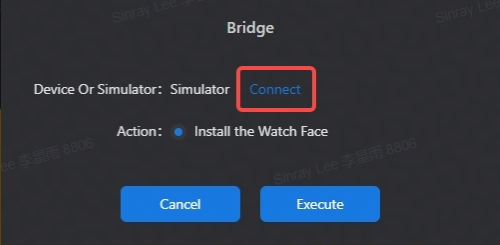
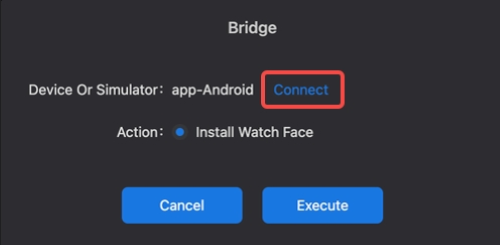
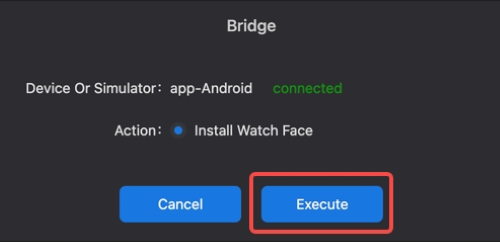
Click the "Connect" button, and the status will change to "Connected", that means, the simulator and the watch face tool are successfully connected. Select the "Action" to be performed, such as "Install the Watch Face", click the "Execute" button, and wait for the watch face to be installed to the simulator
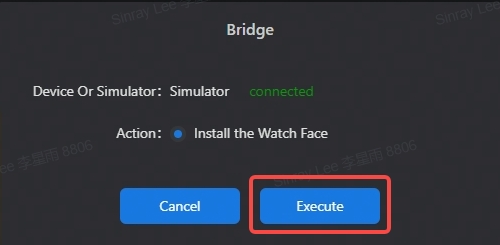
After the installation is complete, you can see the watch face you created on the simulator
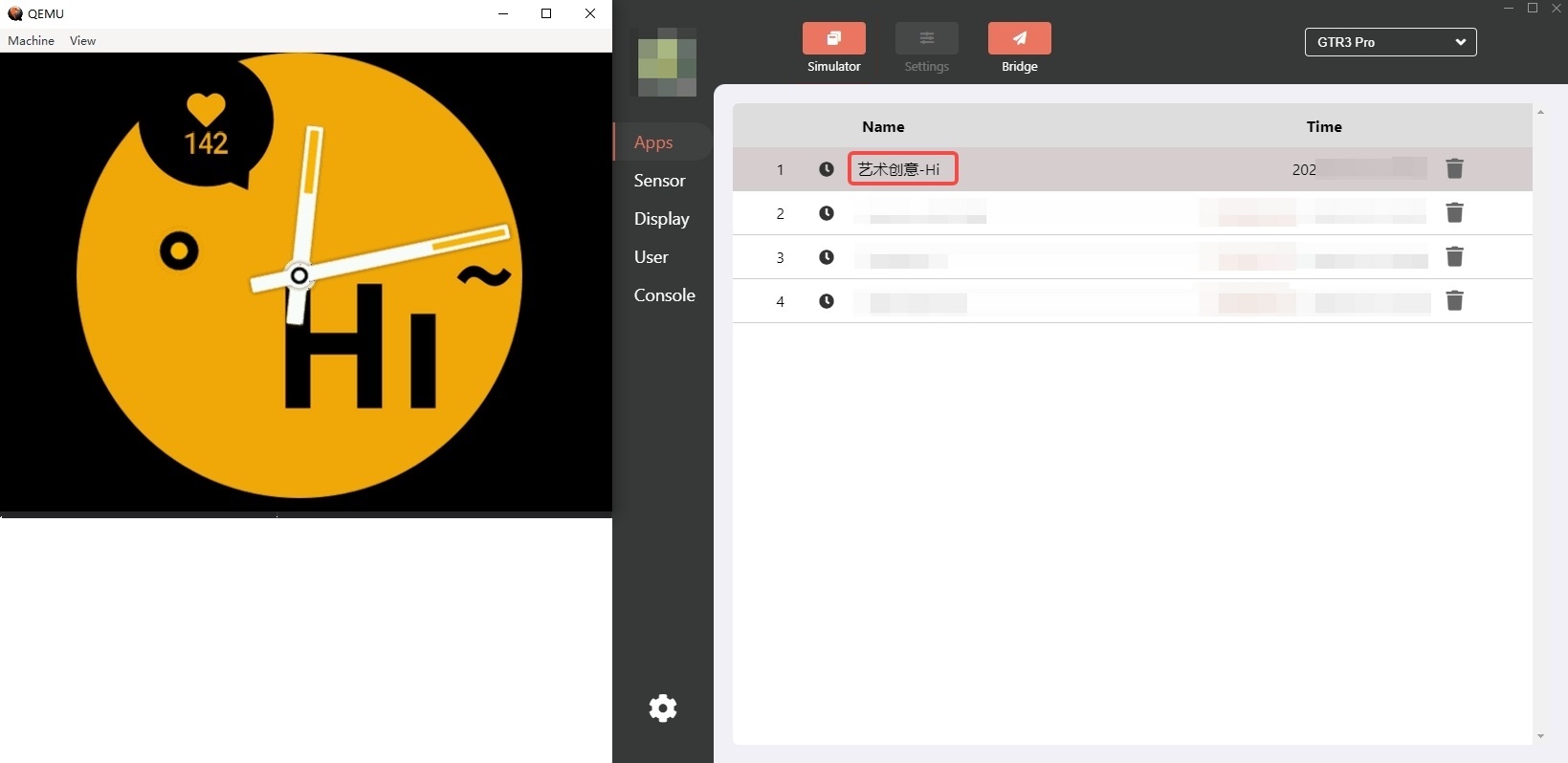
In the simulator, you can refer to Debugger to configure parameters such as heart rate and power
Device Test
Open the developer mode of Zepp APP, click the + button in the upper right corner to expand the collapsed menu, click "Bridge" to open the Developer Bridge mode
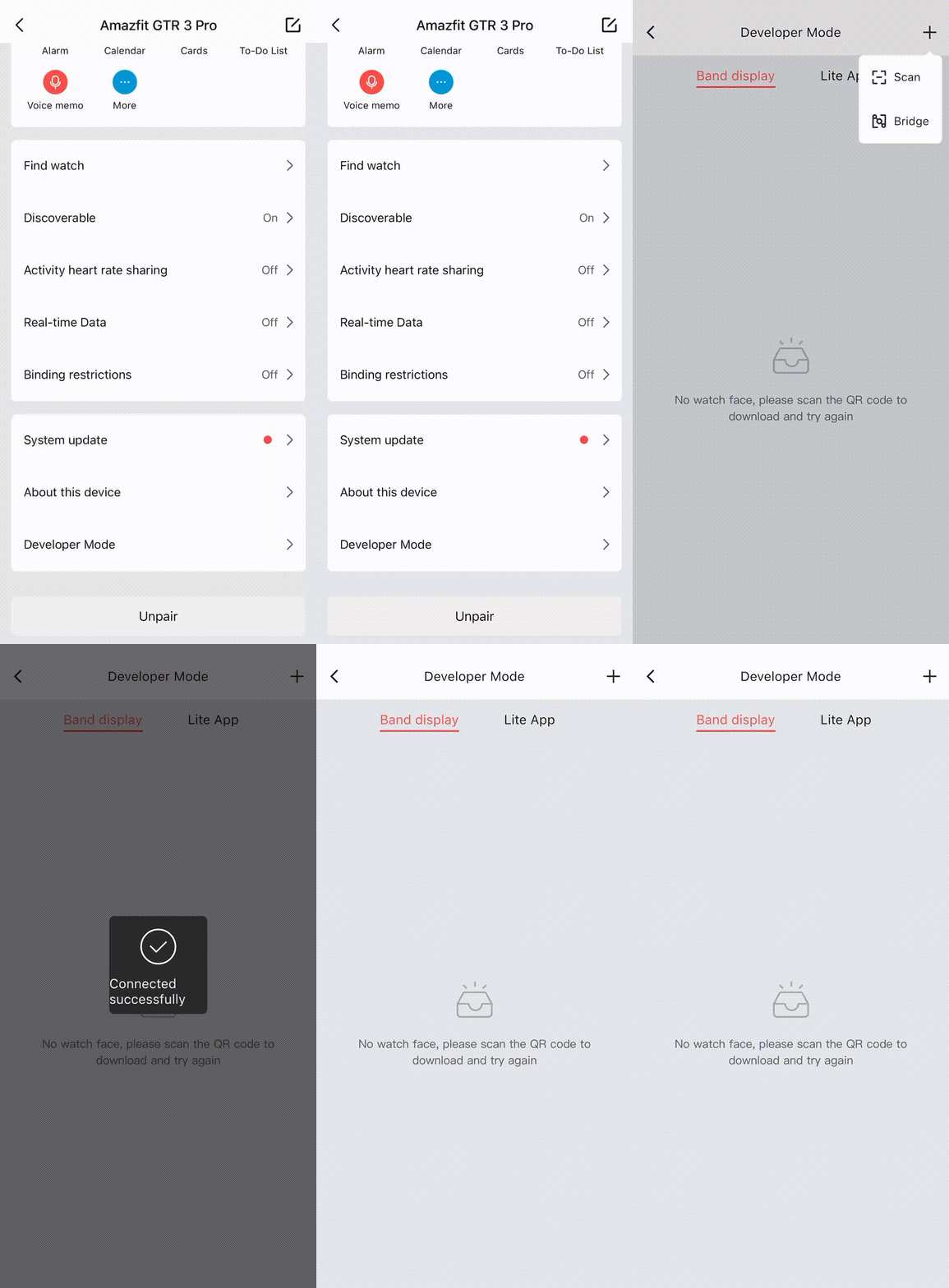
Select a finished watch face in the watch face tool, click the "Bridge" button in the upper right corner, and the Bridge interface will pop up
Click the "Connect" button, the status will change to "Connected", that is, the connection between the APP and the watch face tool is successful. Select the "Action" to be executed, such as "Install the Watch Face", click the "Execute" button, and wait for the watch face to be transferred to the APP
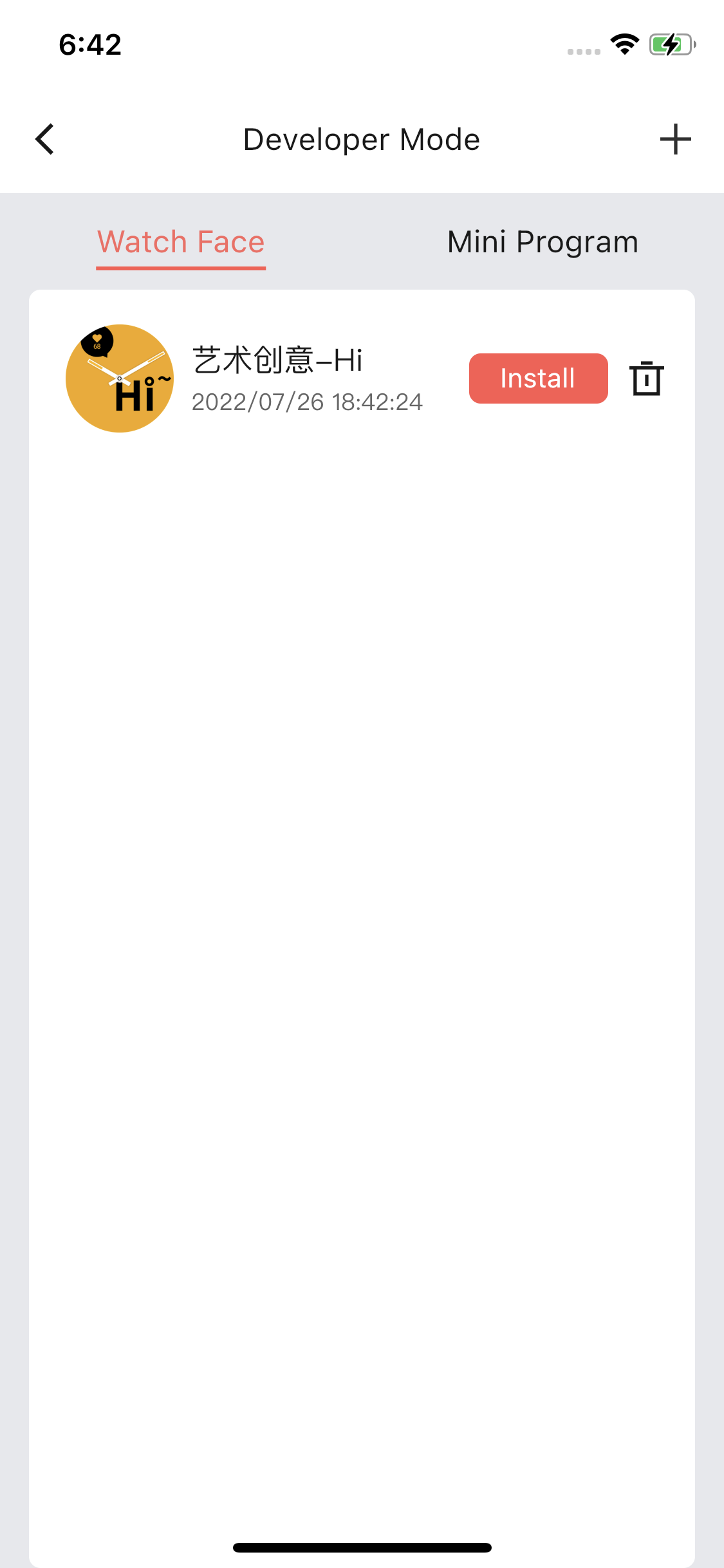
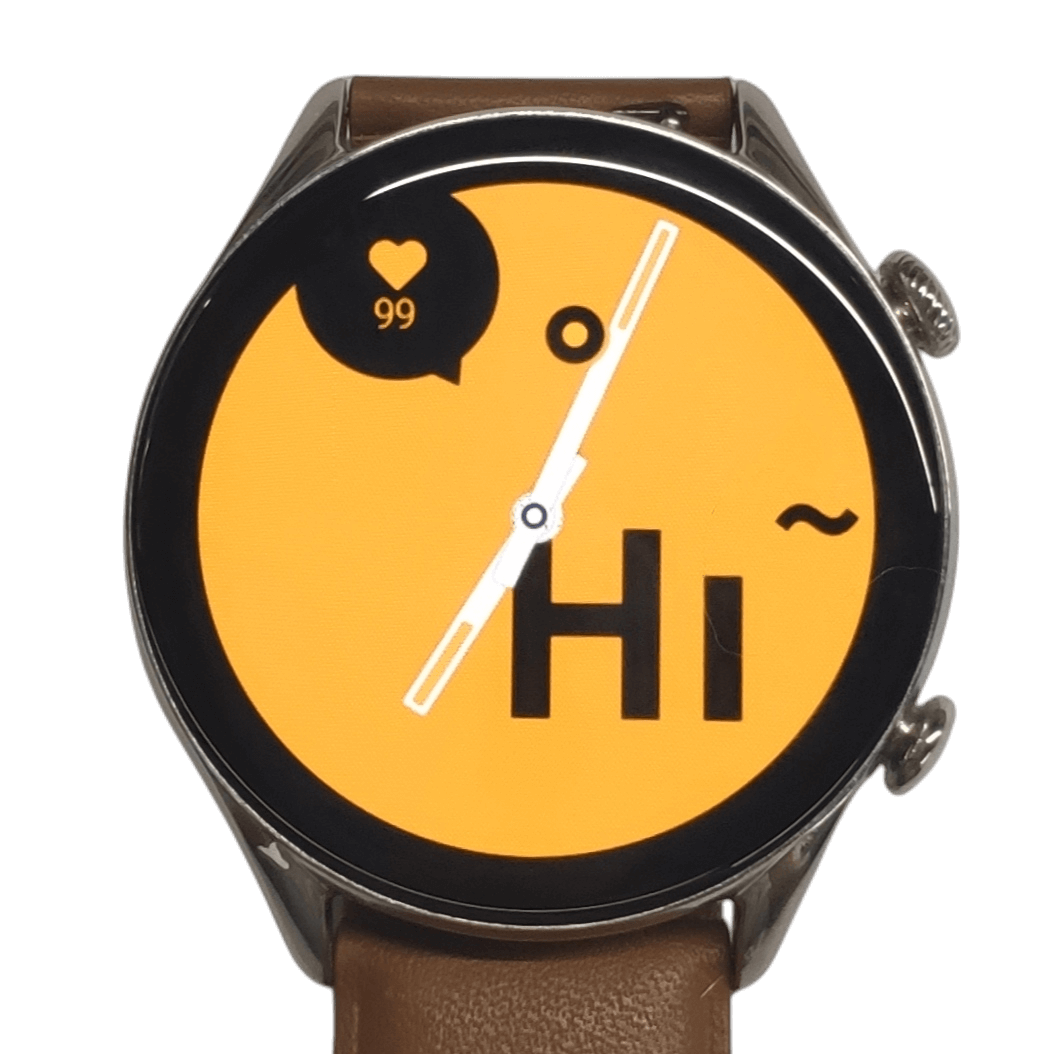
After the installation is complete, you can see the watch face you created on your watch
Note
If the connection to the simulator or APP fails, or there is no device or simulator to connect to, please refer to Developer Bridge Mode for configuration
For more simulator related information, please refer to Simulator